Test Case Versioning
Test Case Versioning is a broader concept of step versioning. While step versioning tracks changes made to individual test steps, test case versioning manages the version history of the entire test case. In the case of test case versioning, every modification made to the test case, such as changes to steps, expected results, prerequisites, or configurations is recorded as a new version.
Why it matters / Use Cases:
- Tracks changes over time: Maintains a complete history of all modifications made to a test case.
- Supports rollback: Allows users to restore a previous version if unwanted changes are made.
- Maintains consistency: Ensures test cases remain accurate and aligned with application changes throughout the testing lifecycle.
Prerequisites
- Access to ZeuZ Server with permissions for Testing → Test Case → Create / Edit.
- A test case must already be created before versioning can be applied.
- Test case versioning should be enabled or supported in the project settings.
- A new version is typically created when updates are made to test steps, expected results, prerequisites, or other test case details.
Features
Create a Test Case Version
- Suppose there is a test case containing two steps: Step Example 1 and Step Example 2. An action has been added to Step Example 1, and another new action has been added to Step Example 2 from Action Library. Together, these two steps make up the complete test case.
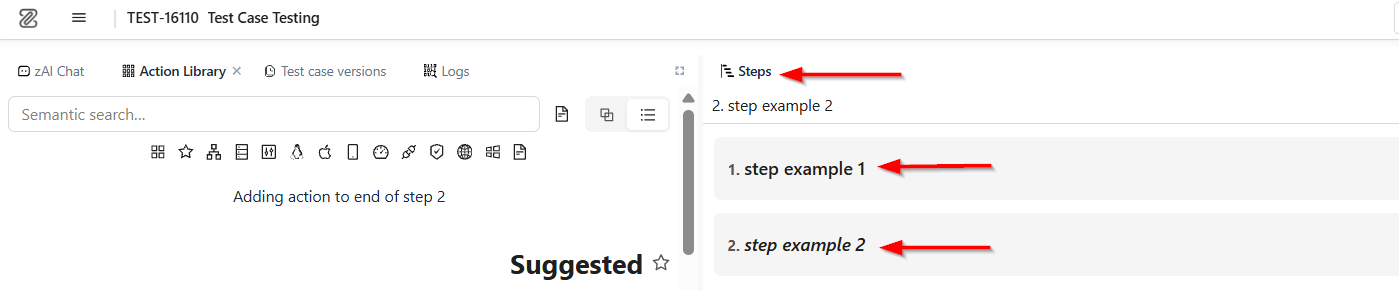


- The current steps in the test case can be saved so that they can be restored later whenever needed. This allows users to return to the exact previous state of the test case. A single step version allows users to restore a specific step, while a test case version allows users to restore the entire test case with all its current steps.
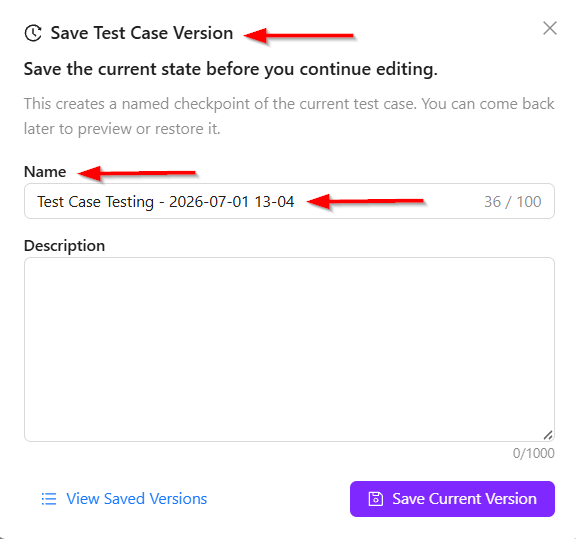
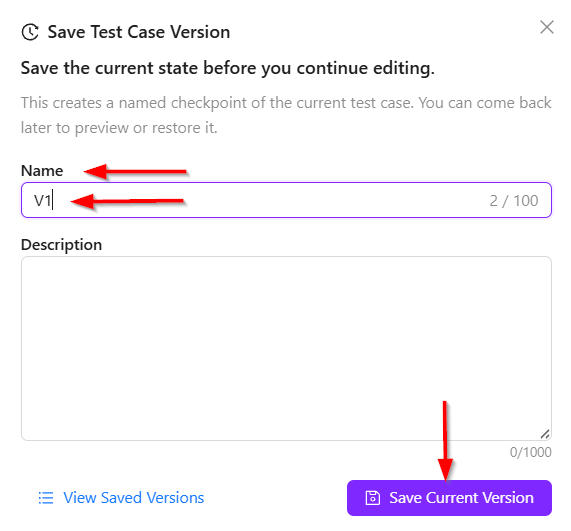
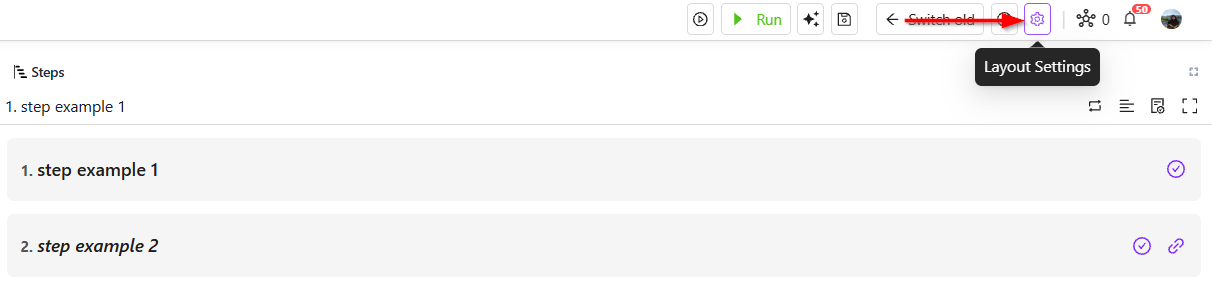
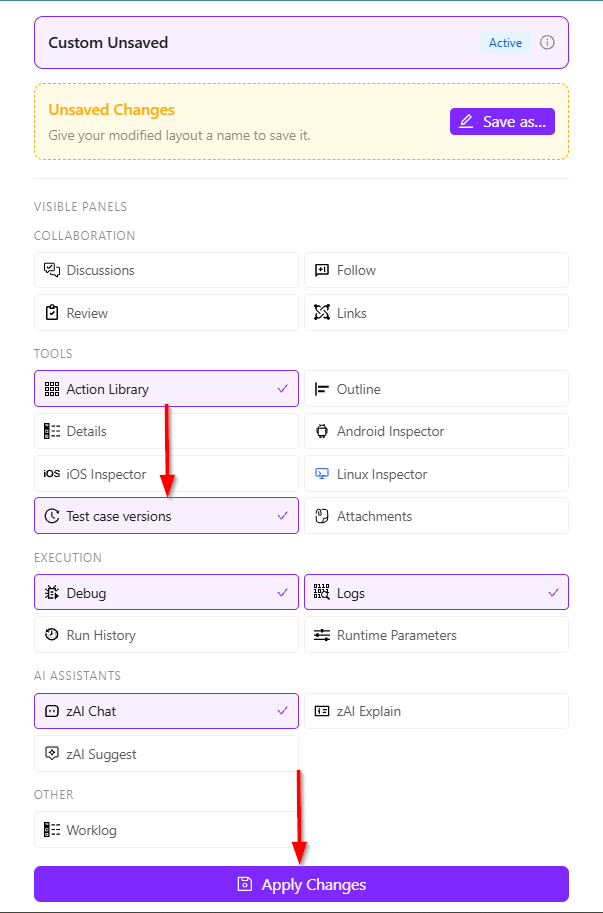
- To create a test case version, click the Save test case version option. This opens the Save Test Case Version window, where a default name is already provided. Users can also enter a custom name manually. For example, the version can be named as V1. Then, click Layout Settings, select Test case versions, and click Apply Changes. This creates a version for the entire test case.
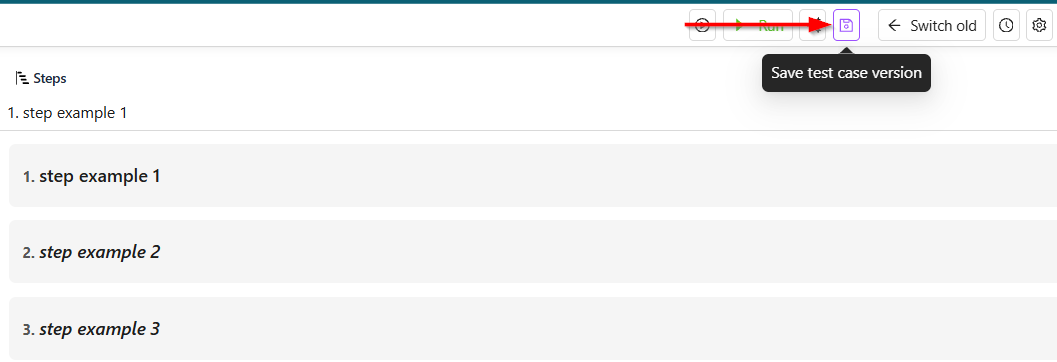
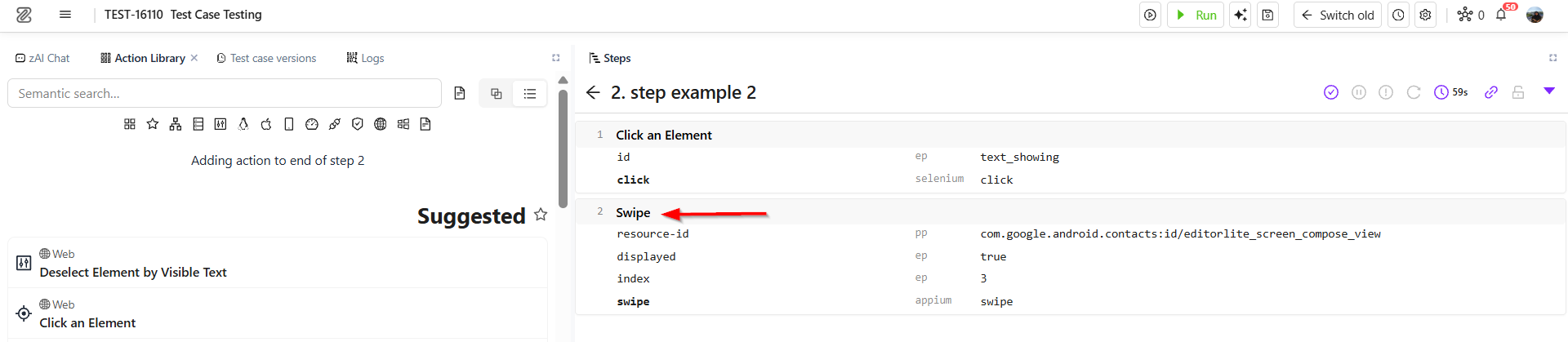
- Next, suppose a new step named Step Example 3 is added with a new action. Additionally, another new action is added to the second step. At this point, the test case becomes slightly different from the previous version. It now contains three steps, where the second step has two actions, and the third step contains one newly added action.

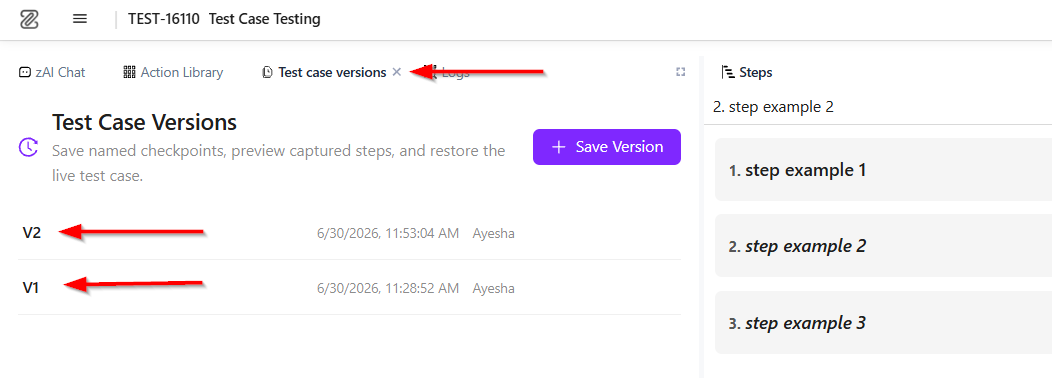
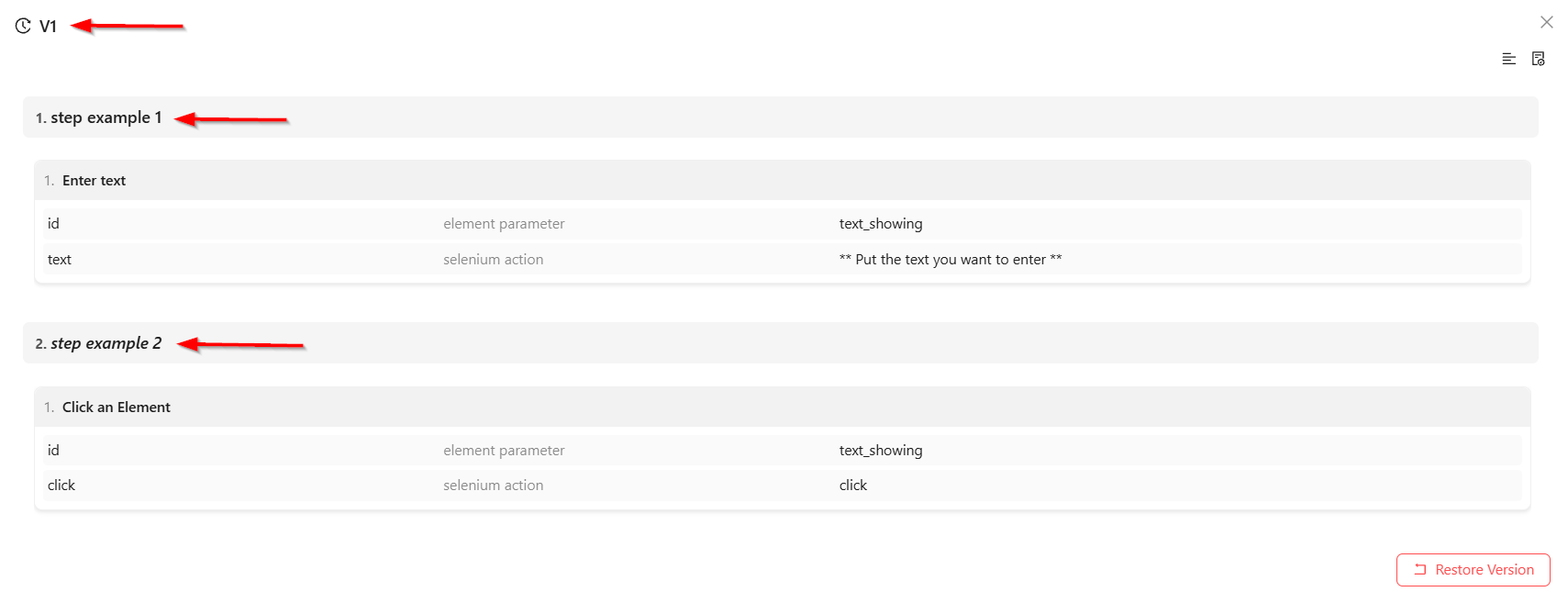
- This updated test case can also be saved as a new version. After saving, the Test Case Versions section will display both V1 and V2. By clicking View Snapshot beside each version, users can see which steps and actions were included in that specific version.
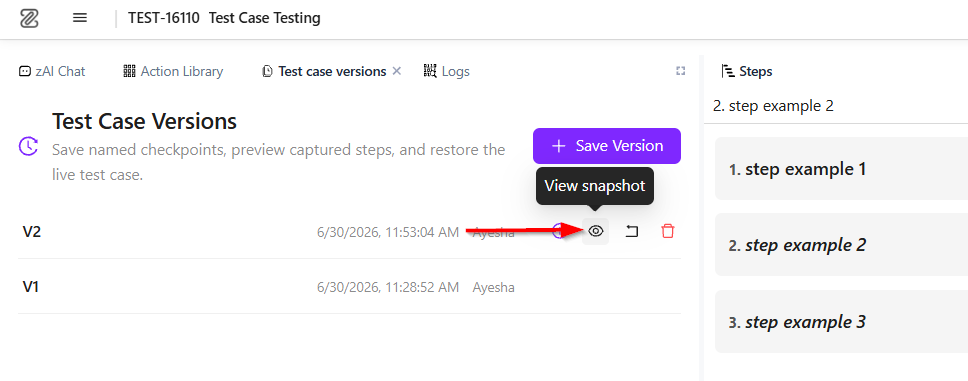
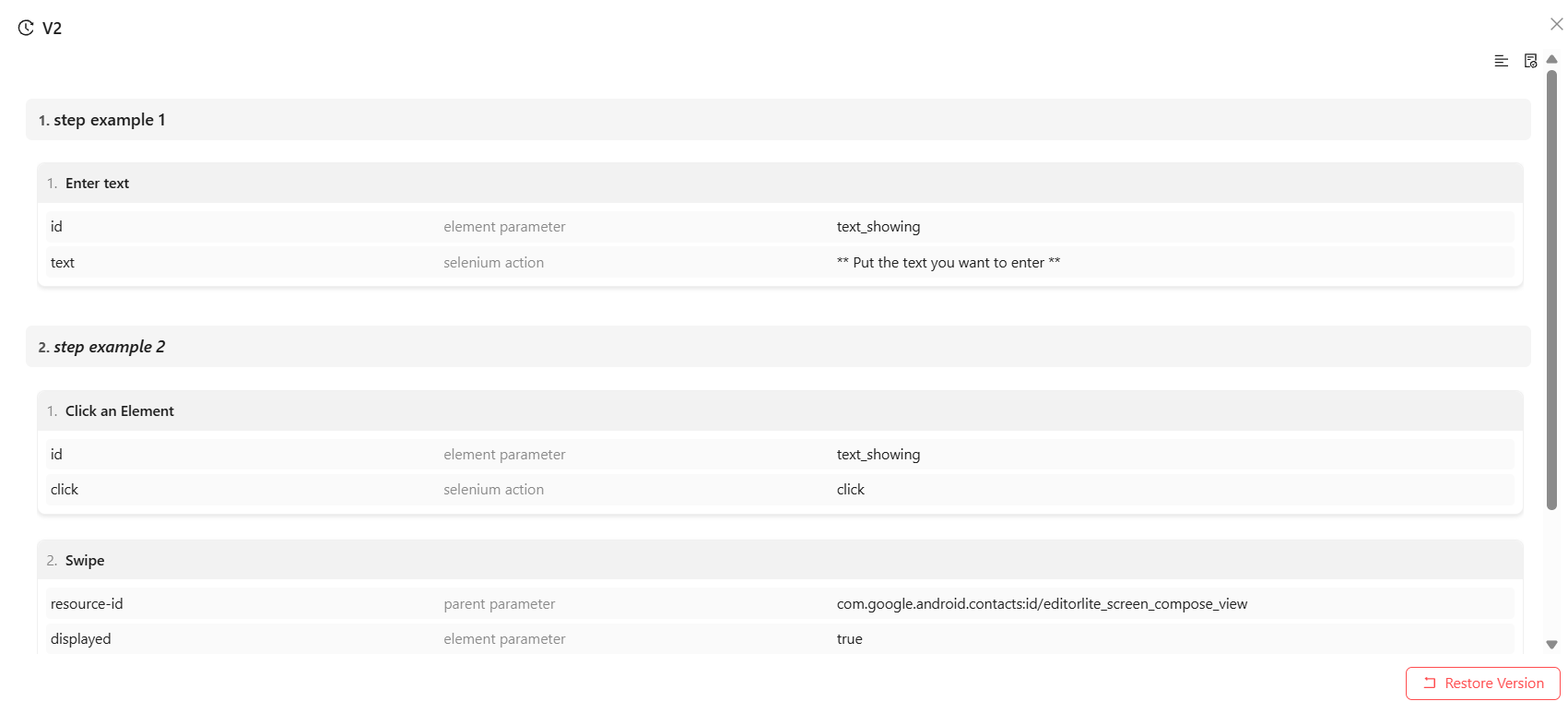
- One important thing to remember is that step versions are saved automatically. Whenever a step is modified, a new version of that step is created automatically. However, test case versions must be created manually. A test case version should be saved when users are satisfied with the current set of steps and want to preserve it for future use.
Restore the Version
- The main advantage of this feature is version restoration. For example, if a test case is edited and the latest version does not provide satisfactory results, users can restore an older version such as V1. To do this, go to the Test Case Versions section and click Restore this Version for the desired version. The test case will then revert to that previous version by clicking Restore Version. As a result, the steps and actions will appear exactly as they were when V1 was originally saved.
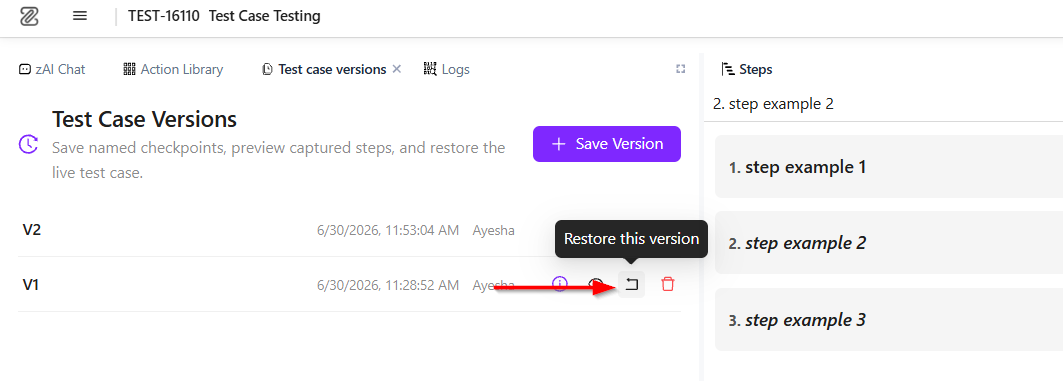
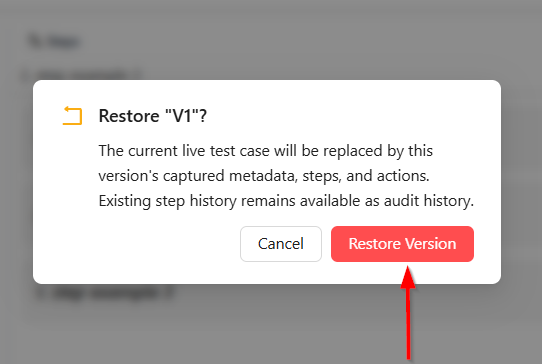
Step Attachment
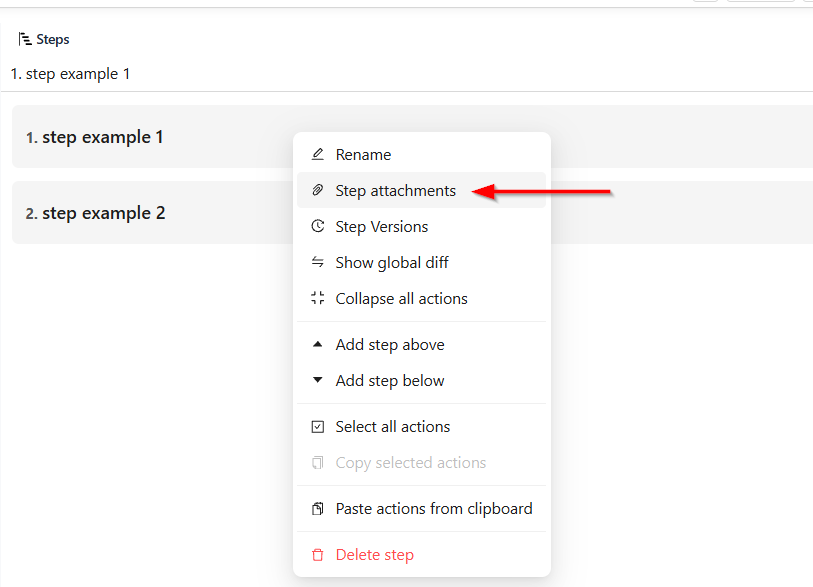
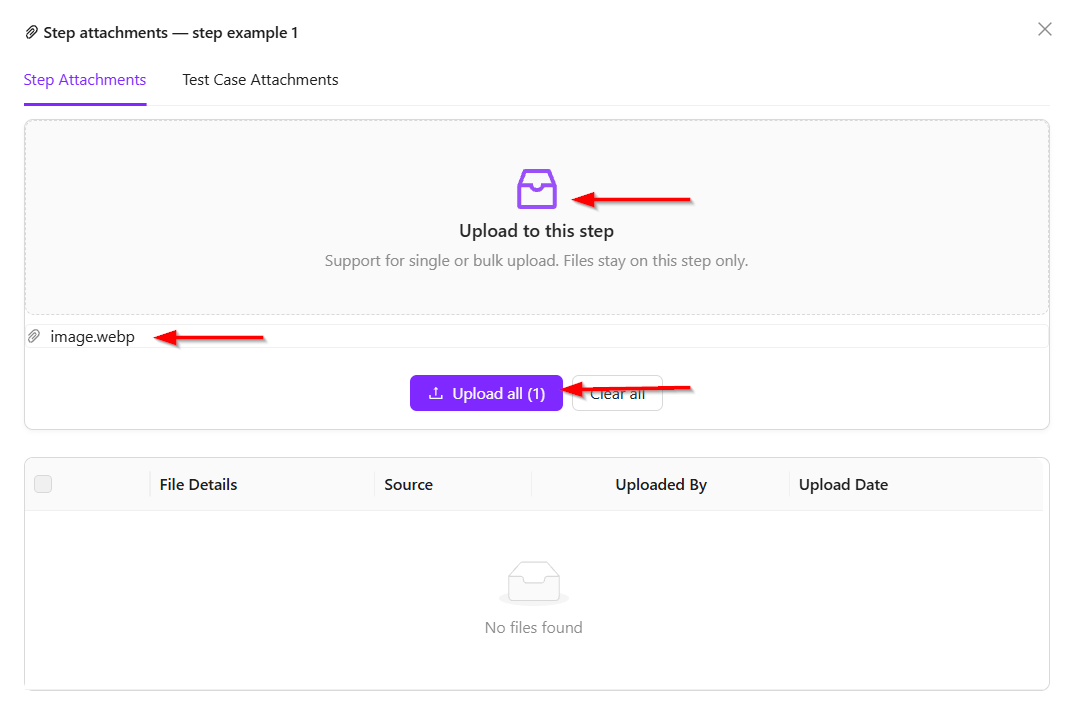
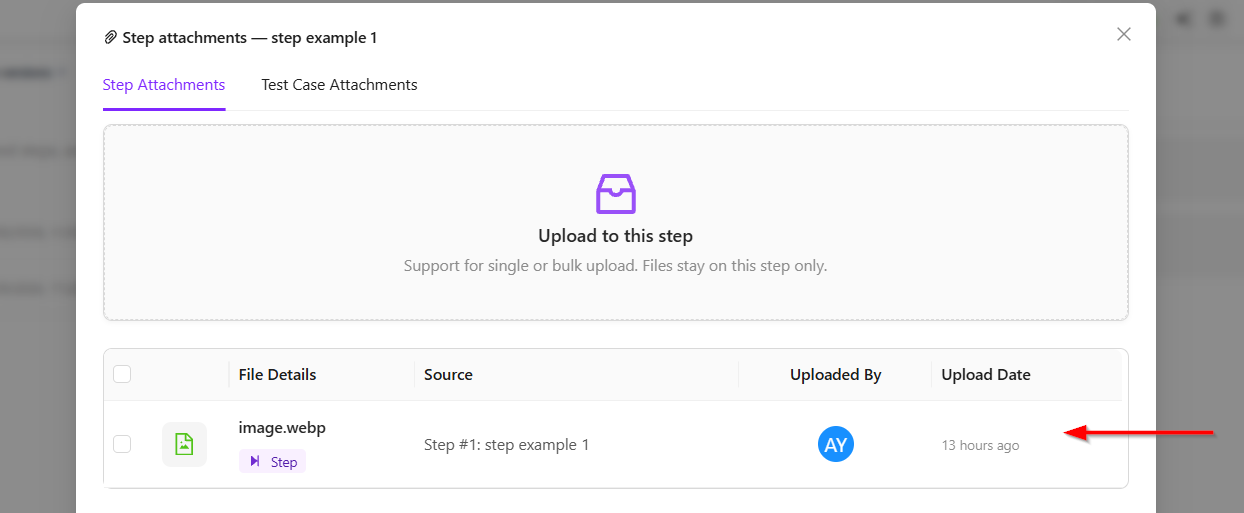
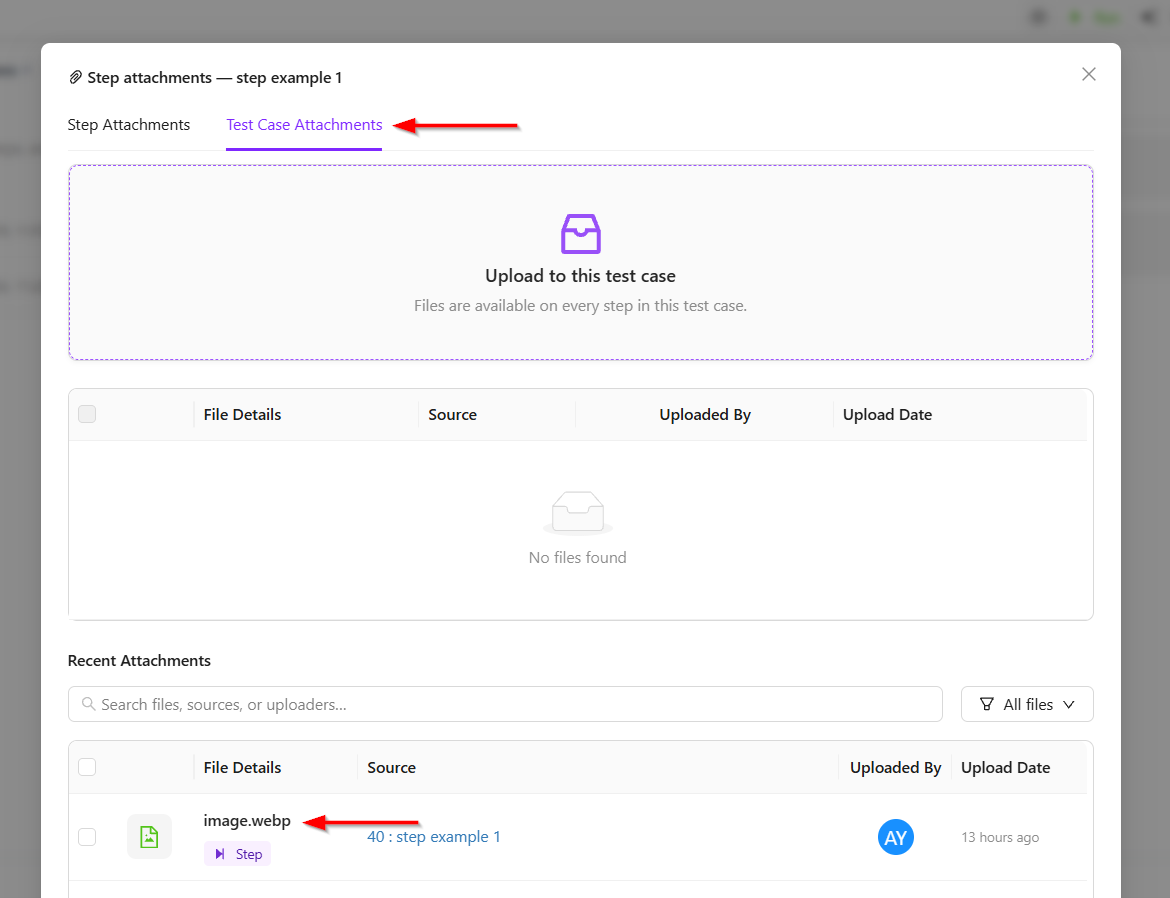
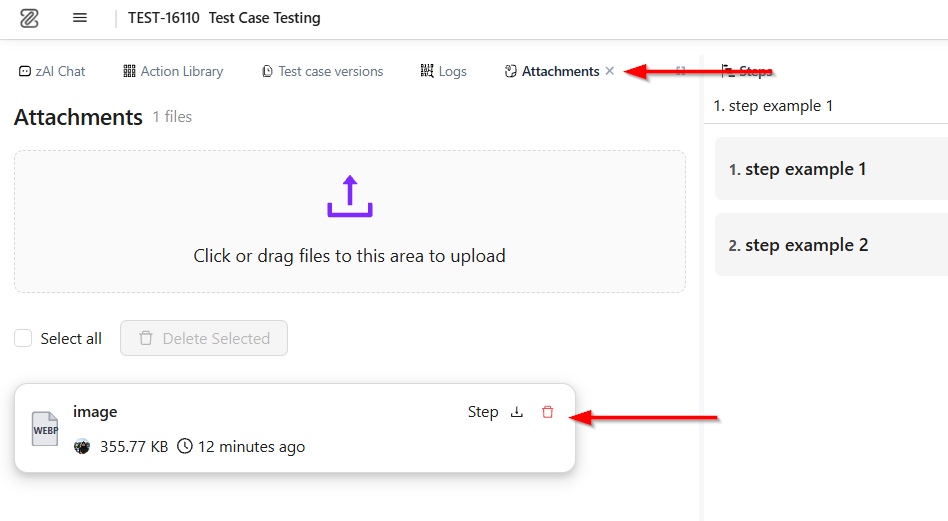
- There is an option called Step Attachments. The attachments are shared across different versions of the step. For example, if an attachment is added to V1, it will be visible in the Test Case Attachments section. Any attachment added in the Attachments section will also appear there, and it will be visible in V1 as well.
- Now, if the test case is reverted back to V2, the same attachment will still be visible there. This means that both versions share the same attachments.
Delete Attachment
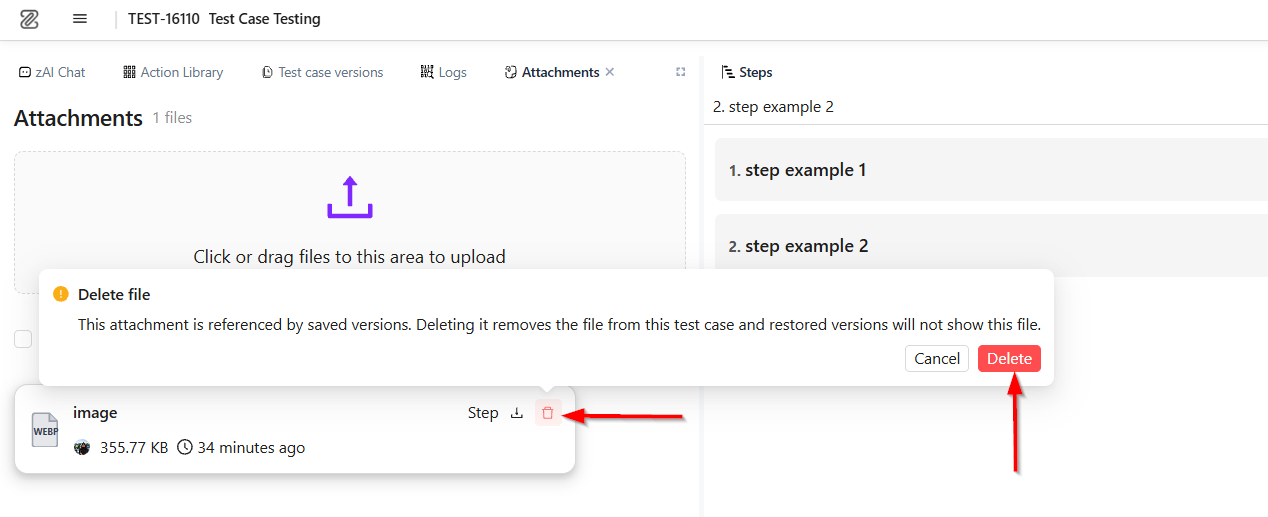
- If the attachment is deleted, a warning message will appear indicating that deleting this attachment will remove it from all other versions as well. Once the attachment is deleted, it will be removed from the previous versions too. If users go back and check those older versions, they will see that the attachment has been deleted there as well.
FAQs / Troubleshooting
Why can’t I see my saved test case version?
Make sure that the Test Case Versions section is enabled from Layout Settings. After enabling it, click Apply Changes to view all saved versions.
Why do I need to save a test case version manually?
Unlike step versions, test case versions are not created automatically. Users need to manually save a version when they want to preserve the current state of the entire test case for future reference.
Why are my attachments visible in multiple versions?
Attachments are shared across all versions of the same test case. This means an attachment added in one version will also appear in other versions.
Why does restoring a version not show my latest changes?
Restoring a version reverts the test case to the exact state of the selected version. Any changes made after that version was saved will not appear.
Can I restore an older version of a test case?
Yes. Go to the Test Case Versions section and click Restore This Version beside the desired version to revert the test case.
What is the difference between step versioning and test case versioning?
Step versioning tracks changes made to individual steps automatically, while test case versioning saves the complete test case manually, including all steps and actions.
Changelog
- Saved full-test-case checkpoints with version previews, restore, delete, and attachment-aware behavior [202605]